

Stop panic-discounting. Start diagnosing. Here is the exact decision tree we use to troubleshoot sudden sales drops.
Seeing a sudden dip in Amazon sales triggers a specific kind of panic. The temptation is to immediately slash prices or ramp up ad spend. Don’t. Without a diagnosis, those “fixes“ are just expensive guesses.
At Reflex, we use a specific diagnostic flowchart to isolate the root cause of a sales drop. It separates technical glitches from market shifts and creates a clear path to resolution.
Here are just a few of the step-by-step investigation flows we follow.
Phase 1: The “Is It Plugged In?“ Check (Technical & Inventory)
Before analysing complex metrics, rule out the binary “on/off“ issues. These are often the silent killers of sales velocity.
1. The “Active“ Stockout
You might see your listing as “Active“ in Seller Central, but are you actually purchasable?
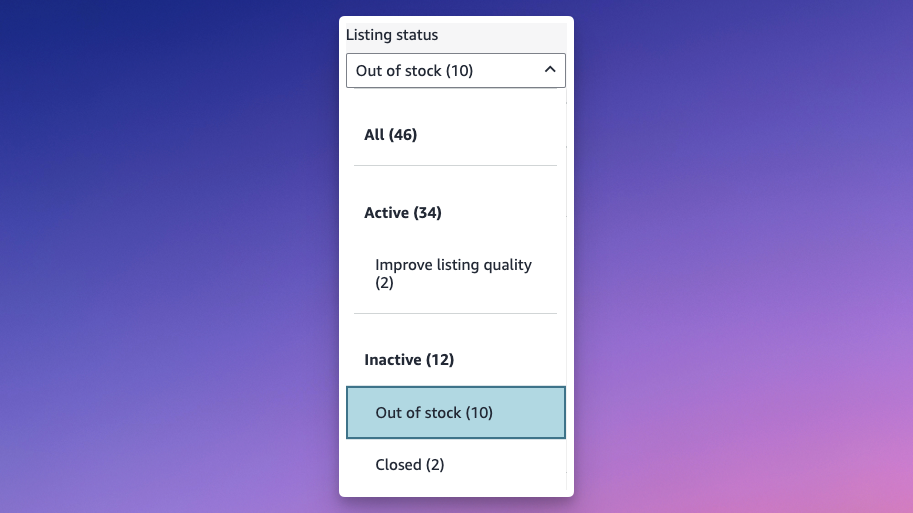
- The Check: Go to your Manage All Inventory page. Filter by “Out of Stock” under the Listing Status filter. If it’s Inactive, you’re stocked out. Simple.
- The Nuance: Sometimes a listing shows as Active but has 0 available units due to “FC Transfer“ (Fulfilment Centre Transfer). If your inventory is being moved between Amazon warehouses, your delivery promise might slip from “Tomorrow“ to “Next Week.“ This kills conversion rates instantly as you lose the effective Prime badge benefit. Unfortunately you can’t stop this, only be aware before taking any drastic actions. Sending into FBA more than enough stock helps too as it will normally be split between FC’s.
2. Hidden Suppressions
Your listing might be live, but invisible to search. This often happens due to back-end attribute errors (e.g., a missing “Ingredients“ field or a conflict in the “Item Size“) or an issue with your MAIN carousel image.
- The Forensic Test: Go to the Amazon homepage (as a customer) and paste your ASIN into the search bar.
- The Result: If your product does not appear in the Organic results, you are search-suppressed. If you can’t easily find the issue yourself, raise a support case with Seller Support and ask.
Phase 2: The Split (Traffic vs. Conversion)
If your listing is technically sound, you need to look at the data. Open your Business Reports and look at two metrics for the affected period: Sessions (Traffic) and Unit Session Percentage (Conversion Rate).
Which one dropped?
Scenario A: Sessions Are Down (The Traffic Problem)
Fewer people are walking into your shop. Why?
- Check 1: Is the Niche Down? Use your tools (like Helium 10 or Amazon’s Brand Analytics) to check the Search Volume for your main keywords.
- If Search Volume is down: It’s not just you; it’s the market. It could be seasonality or a trend shift. Action: Re-forecast expectations; don’t burn cash trying to force demand that isn’t there.
- If Search Volume is stable: The customers are there, but they aren’t finding you.
- Check 2: Did You Lose Rank? Check your organic rank for your top 10 keywords. Did you slip from position 4 to position 14?
- Action: This is where you get aggressive. Increase PPC spend on those specific keywords to “buy“ your way back to the top of the page and regain visibility. But don’t stay this way for long as you’ll quickly burn cash!
- Check 3: Are You De-Indexed? Sometimes Amazon “de-indexes“ a listing for specific keywords, meaning you don’t rank at all (not even on page 50).
- Action: Check if your backend search terms or title keywords were changed recently. Re-optimise the listing to ensure Amazon’s algorithm can “read“ you.
Scenario B: Conversion Is Down (The Offer Problem)
People are clicking, but they aren’t buying. This is usually a problem with your offer or your page.
- Check 1: The Price War Did a competitor drop their price? Did a generic version of your product launch?
- Action: Check the “Buy Box“ percentage. If it’s not 100%, someone else might be selling on your listing (or you’re running out of stock). If it is 100%, check your competitors’ prices. You may need to run a coupon or deal to regain competitiveness.
- Check 2: The Review Bomb Did a negative review land on the top of your detail page? A 1-star review visible above the fold can devastate conversion overnight.
- Action: You can’t delete it, but you can encourage more, new reviews. Drive sales volume (perhaps via a lower price or ads) to generate new reviews that, if your product lives up to its promises, will be positive.
- Pro tip: in Seller Central, you can click a button to request a review from a customer on every order.
- Check 3: The “Broken“ Page Did you recently update images or bullets? Sometimes an “optimisation“ actually hurts sales.
- Action: Revert any recent changes to the listing content and see if conversion recovers.
Summary: The Investigation Flowchart
- Is it broken? (Stockouts, Suppressions, FC Transfers)
- Is it Traffic? (Check Search Volume → Check Keyword Rank)
- Is it Conversion? (Check Competitor Price → Check Recent Reviews → Check Content Changes)
Next time you see a red arrow on your sales dashboard, don’t guess. Diagnose.
And if you need some more expert help, contact us here to see how we can help.
Contact Us
Ready to discover how we can boost your brand’s online sales together? Send us a message using the contact form or schedule a free 30 minute consultation call.